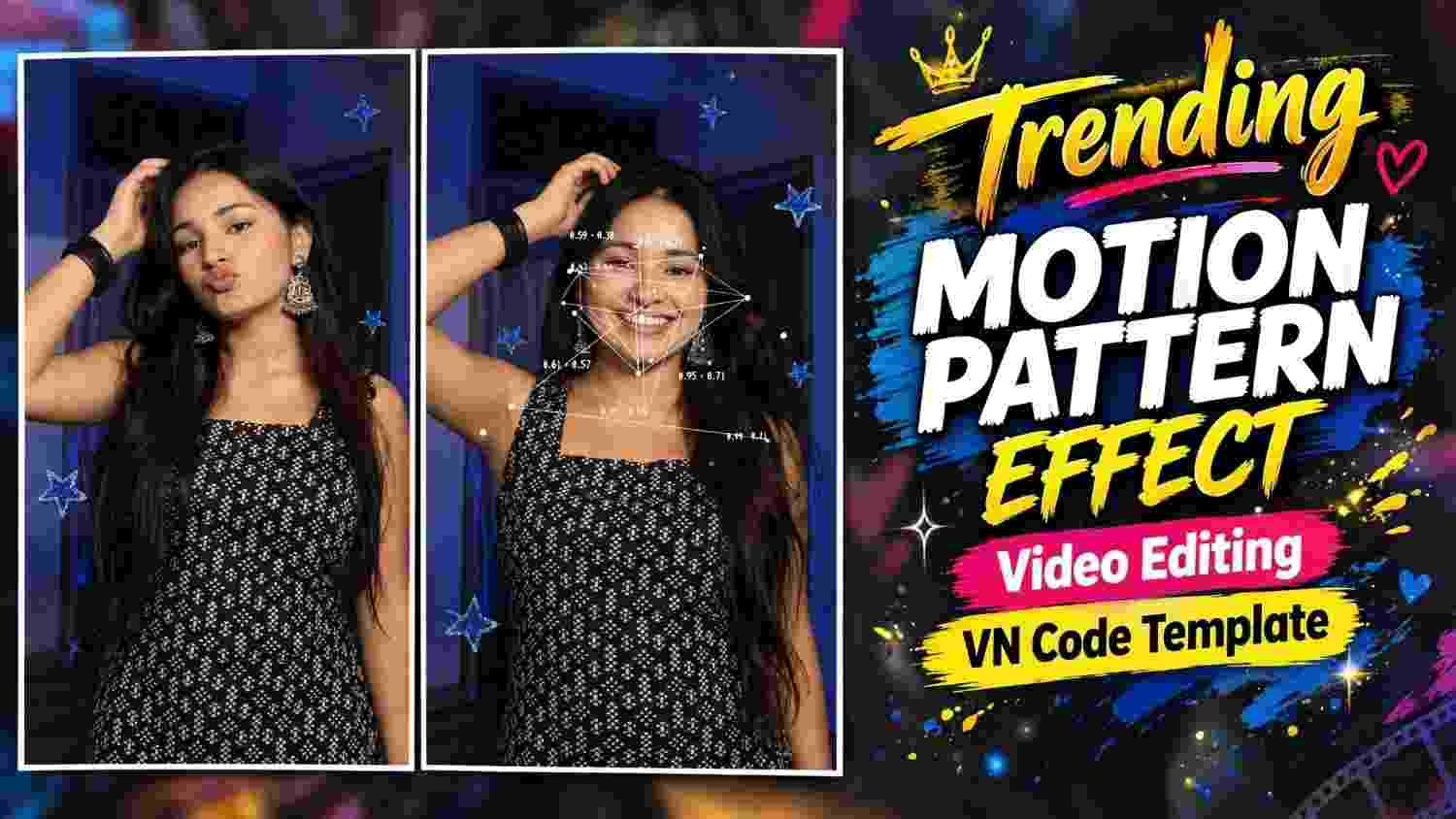
VN Editor is very useful for arranging short videos beautifully. By using its various editing tools, you can create attractive movement in ordinary photos or videos. The Motion Pattern Effect is an editing style in which the movement of a photo or video is arranged according to a specific pattern. As a result, the video does not remain static in one place but moves gradually, making it more visually appealing.
This type of edit works very well for social media reels and short videos. The best part is that it does not require advanced editing skills. The entire process can be completed using basic tools in VN Editor, such as the Timeline, Keyframe, Zoom, and Position tools. By maintaining proper timing and smooth movement, the video can look even better.
Motion Pattern Effect Video Edit in VN
When creating a Motion Pattern Effect video edit in VN Template, the main focus should be on arranging the movement properly. First, the photo or video you want to work with must be placed on the Timeline. Then, you can use Keyframes to set the starting and ending positions. If you keep the image in one position at one Keyframe and slightly change its position at the next Keyframe, movement will be created automatically between them. Similarly, you can create more attractive motion by increasing or decreasing the Zoom. If you have multiple photos or videos, you can add different movements to each section. However, it is better not to make the movement too fast. Slow and clear movement makes the edit look more natural. Matching the movement with the background, timing, and clip duration will make the overall look of the video more appealing.
How to Create Motion Pattern Effect VN Template
First, open VN Editor and start by selecting the New Project option. Then, choose the photo or video you want to use for creating the Motion Pattern Effect and add it to the Timeline.- If you are using multiple photos or videos, arrange them in your preferred order. Check the duration of each clip on the Timeline and adjust them by making them shorter or longer as needed.
- Watching the entire video once at the beginning will help you understand which sections need movement. Instead of starting the video too quickly, leaving a little time at the beginning can help the following motion start more smoothly. The main goal of this step is to create the basic structure of the entire project.
Now, select the first clip from the Timeline. Then, use the Keyframe tool to place a Keyframe at the beginning of the clip. Set the position where you want the image to remain at this Keyframe. You can slightly zoom in on the image or keep it at its normal size. There is no need to make major changes here. - Simply set the image’s starting position properly. Then, move slightly forward on the Timeline and add a second Keyframe. At the second Keyframe, slightly change the position of the image. For example, you can move the image a little to the right, left, up, or down. VN will automatically create movement between these two Keyframes.
Now it is time to create the actual Motion Pattern. After setting the movement for the first clip, use Keyframes in the same way for the following clips. If you apply movement from right to left in one clip, you can use the opposite movement in the next clip. You can also use a slight Zoom In in one section and a Zoom Out in another Motion Pattern Effect video edit in VN. - This creates a consistent pattern throughout the video. Make sure that the movement of each clip blends well with the previous section. Excessive zooming or sudden position changes can make the video look unnatural. Therefore, it is better to use small movements. Check the Timeline preview to make sure the motion in each section looks correct.
After creating the Motion Pattern, you need to adjust the timing. If any movement feels too fast, increase the amount of time between the two Keyframes. If the movement is too slow, reduce the distance between the Keyframes. This allows you to adjust the movement of each clip according to your preference. - When changing the Zoom and Position, it is better to make gradual changes instead of sudden, large adjustments. This makes the movement in the video look smoother. Preview the entire Timeline from beginning to end. If any section feels too fast or too slow, adjust it again. The main goal of this step is to create a proper balance between the movement of all the clips.
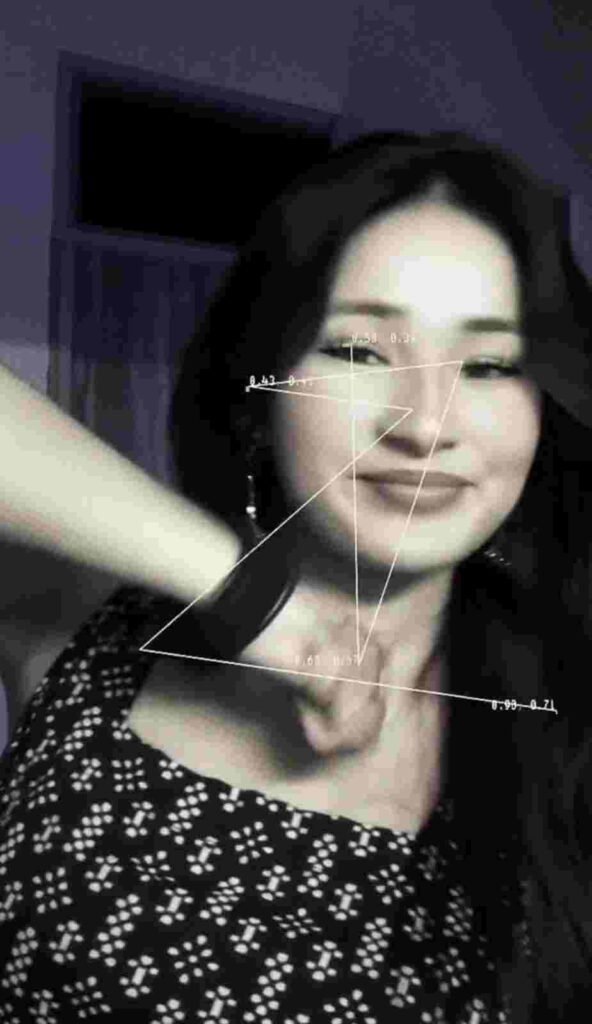

Pattern Balance and Visual Flow
For a good Motion Pattern Effect, simply having movement is not enough; the overall flow of the video must also be maintained. Make sure that the movement of the next clip does not feel suddenly different after the movement of the previous clip ends. Instead of using the same type of movement repeatedly, you can make slight variations between Position and Zoom. However, if the changes are too significant, they may distract viewers from the main subject of the video.
It is not necessary to keep the timing of every clip the same. A clip that requires more movement can be given a little more time, while a shorter section can have less time. Balancing the entire video in this way makes the Motion Pattern clearer and more visually appealing.
Final Touch and Presentation
After completing all the editing, watch the entire video carefully once. In particular, check whether the movement at the beginning, middle, and end is working properly. If any Keyframe is placed in the wrong position, correct it.
You should also check whether the movement matches the timing of the video. If any section feels too dynamic, you can reduce the movement. Similarly, if any section feels too static, you can add a slight Position or Zoom movement.
Once everything is correct, watch the video in the Final Preview. By fixing these small details, you can make the Motion Pattern Effect look much clearer and more attractive.
Conclusion
Creating a Motion Pattern Effect video edit in VN is not difficult. By using VN Editor’s Keyframe, Position, and Zoom tools correctly, you can create beautiful movement. First, create a good structure and then gradually add movement to each clip. Maintaining the proper Keyframe distance, Zoom level, and clip timing is very important.
Instead of using too many effects, keeping the movement clean and smooth will make the video look better. After completing the edit, preview the video once and fix any minor mistakes. In this way, you can create a beautiful Motion Pattern video.


1 thought on “How to Create Motion Pattern Effect Video Edit in VN”